The laptop keyboard isn’t working: ways to solve the problem (2026)

Keyboard issues on laptops are very common in 2026. Most causes are simple and can be resolved with minor actions in the system, but there are also major problems caused by hardware failures or software glitches. Gaming laptops suffer the least from this, but it still occurs, as gamers often press the keys more than regular users. Let’s analyze this together, we will try to name all the ways to fix it if the laptop keyboard is not working.
Working solutions (2026)
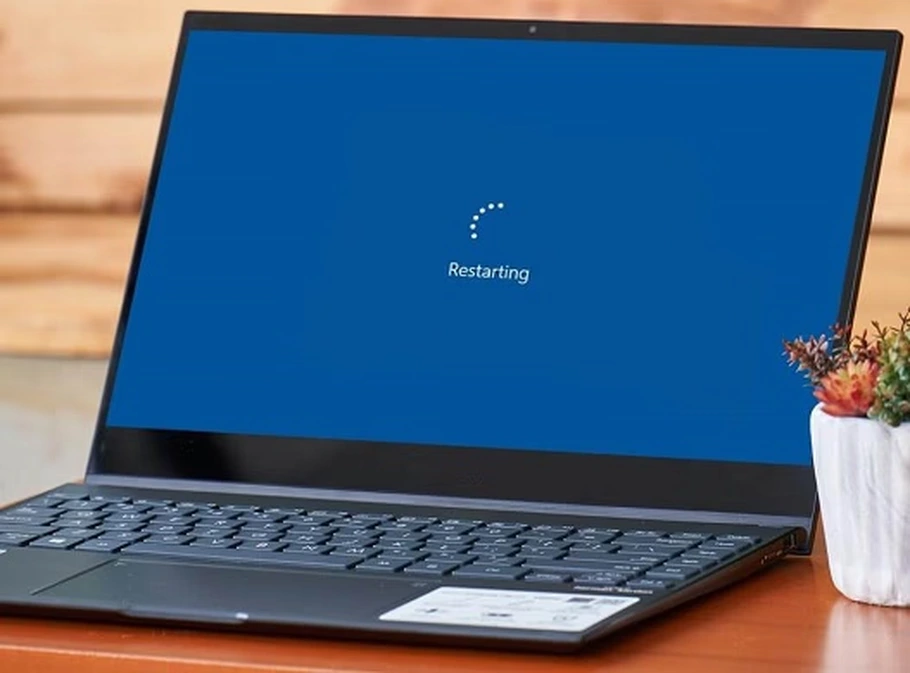
Reboot the laptop
Sometimes a minor system conflict occurs, and simply restarting the laptop is necessary. By the way, this is the most common cause. You can do this by holding down the power button on the laptop’s case. In 99% of cases, the problem evaporates upon reboot.
If this method did not help, continue reading.
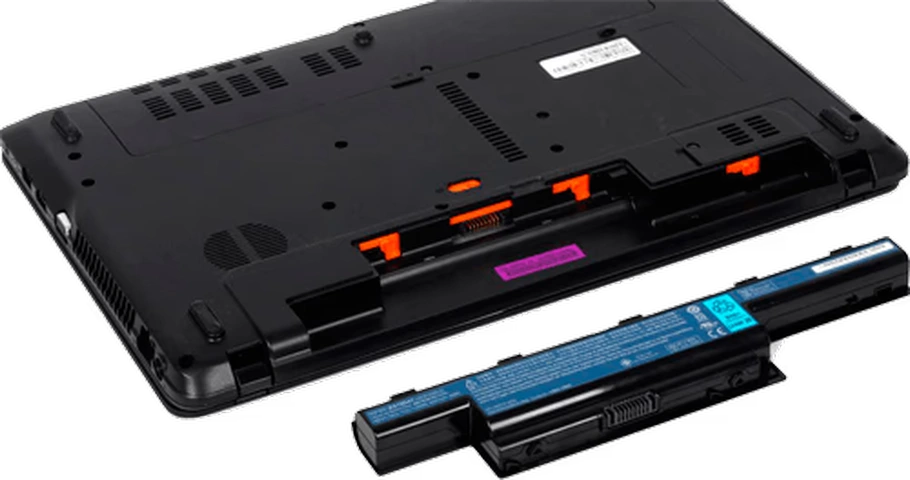
Disconnecting the battery
If the keyboard has completely stopped working, you can perform a hard restart of your laptop by removing the battery. In most models, it is easily accessible, while in others, you might need to unscrew some bolts and disassemble the laptop.
Checking the system for viruses
Sometimes the keyboard may not work because the laptop has been infected with viruses (malicious software). Therefore, you should check your laptop with antivirus software. We will soon write a review article on which antivirus is the best in 2026. After detecting viruses, they need to be removed, then reboot the laptop.
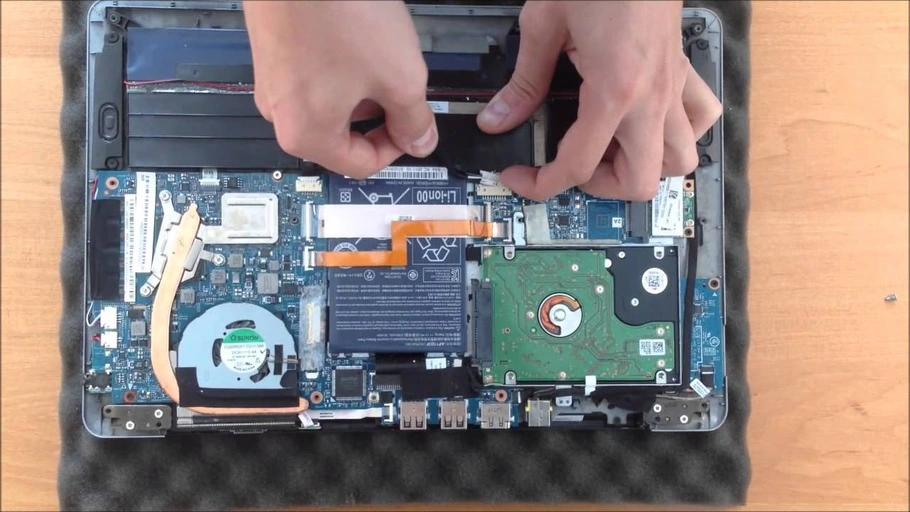
Checking the laptop’s ribbon cable
Disabling the keyboard on the laptop may be related to the ribbon cable coming loose, so it needs to be checked. This can only be done by disassembling the laptop and reconnecting the ribbon cable to the motherboard.
Each laptop has its own disassembly and connection instructions. If you lack technical skills or if the laptop is under warranty, take it to a service center.
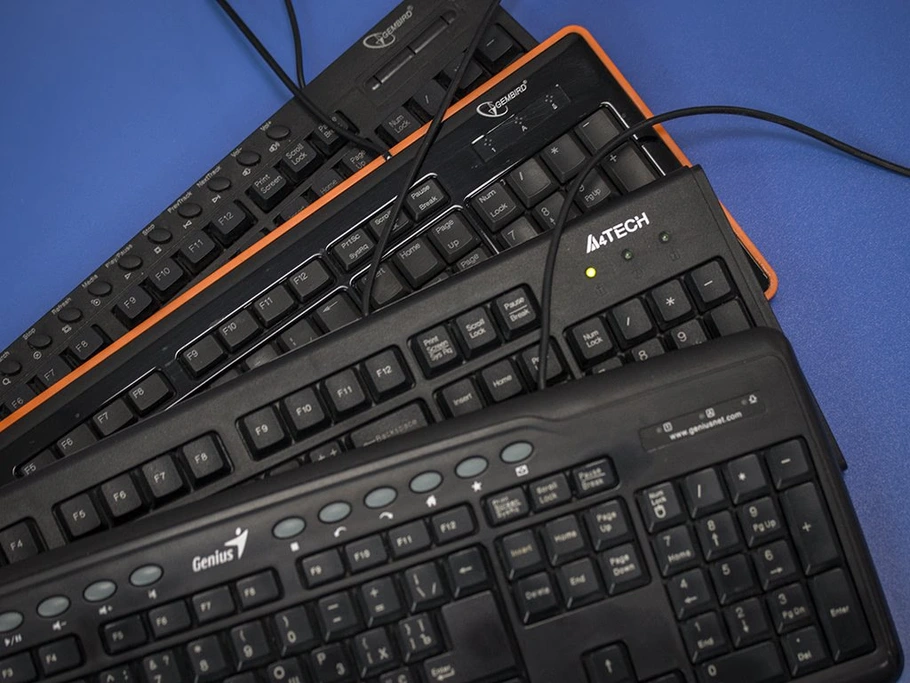
Connecting an external keyboard to the laptop
If none of the advice worked, you can simply connect an external keyboard to continue working with the laptop. Most models have USB-A, USB-C ports that you can use. Sometimes there are wireless models that connect via Bluetooth.
If this does not help, then you might need to reinstall Windows or the drivers, as the problem may be with the system. If you can’t fix it yourself, then the only option is to go to the nearest service center.
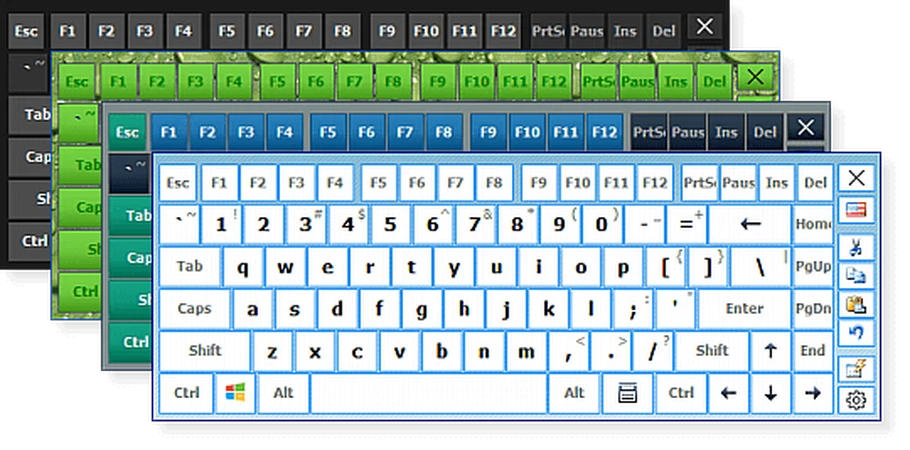
Using a virtual keyboard
If an external keyboard is not available, you can launch a virtual one, which can be run both offline (*available in the system) and through an online service.
To launch it on a PC with Windows:
- Press “Start”;
- Then “Settings”;
- After “Accessibility”;
- And finally, “Keyboard” and “Virtual Keyboard” (or “On-screen Keyboard”).
You can also call it up with the keyboard shortcut Windows + CTRL + O.
With the virtual keyboard, you can work using a mouse.
On MacBook, the virtual keyboard is launched like this:
- Go to the Apple menu;
- Open “System Preferences”;
- Go to “Accessibility”;
- Enable “Assistive Keyboard”.
You can also control the virtual keyboard on Apple laptops using a mouse.
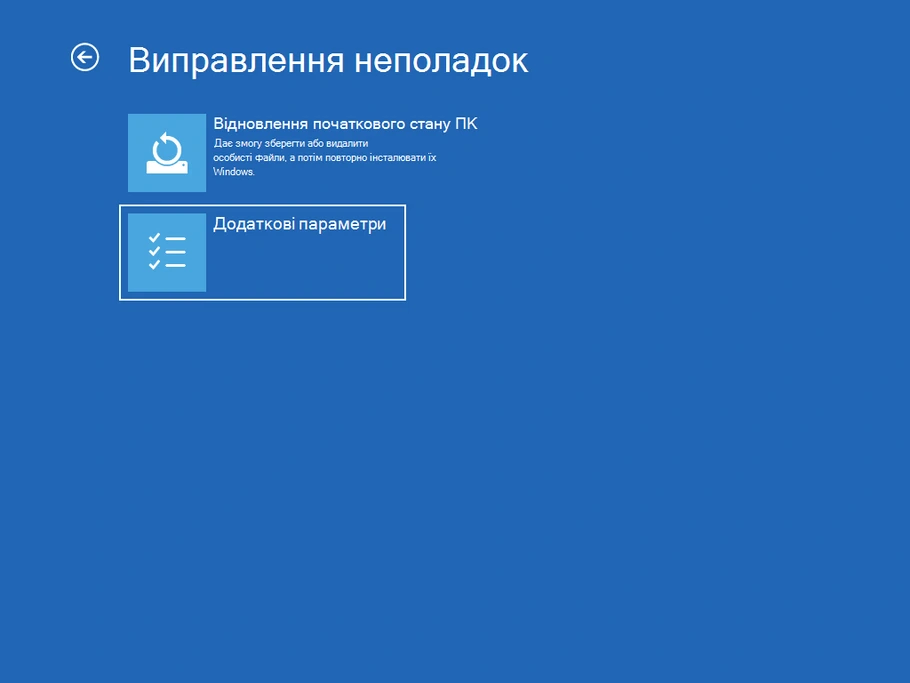
Fixes in Windows and updating drivers
If you were able to somehow access the keyboard (external or virtual), you can initiate troubleshooting directly in Windows.
The operating system will try to find the cause and fix it. Sometimes it’s resolved by simply updating the keyboard driver.
To do this:
- Press “Start”;
- Go to “Settings”;
- Then “Update & Security”; (don’t forget, ideally, Windows should be activated, we wrote how to do it)
- After “Troubleshoot” and “Additional troubleshooters”;
- Click on “Keyboard”, and update.
If it helped, great. If not, continue reading.
Rolling back to the last Windows update
Software and updates can cause conflicts with your laptop’s keyboard.
How to roll back Windows to the last update:
- Press “Start”;
- Go to “Settings”;
- Select “Update & Security”;
- Then “Windows Update Center” and “Update History”;
- Select the last update and press “Uninstall updates”.
Updating keyboard configuration
The problem may also be in the keyboard itself, for example, an incorrectly installed driver. How to check and solve the problem?
- Right-click on “Start”;
- Open “Device Manager”;
- Find the “Keyboards” section;
- Select the required keyboard and press “Update hardware configuration”.
If that didn’t help, you can remove the device, restart the laptop, and wait for the driver to be automatically reinstalled.
Resetting BIOS/UEFI
Resetting BIOS/UEFI often helps. Entry into it varies by laptop, but most often during laptop boot by pressing Delete (sometimes Fn + F2). Once the menu appears, you can perform a rollback to factory settings.
You can also remove the “pill”, but this involves opening the laptop and requires technical skills, better through a service.