Not Connected: No Available Connections. What to Do?

f you encounter the error “Network cable is not connected” and cannot access the internet from your laptop or PC, make sure to check out our FAQs. We will try to help you figure it out.
For example, in Windows 10, this error is displayed with the message “Not connected: no available connections.” The main reasons for this issue could be:
- damaged network cable;
- incorrectly connected cable;
- provider equipment malfunction;
- network connection settings issues.
How to fix the “Network cable is not connected” issue?
Method 1: Disconnect and reconnect the cable from the PC (or router).
The cable connector has a special latch that should click into place when properly connected. This indicates that the cable is fully inserted and making contact.
However, in some cases, the connector may need to be replaced. This requires proper crimping of the cable, which is best done by a professional. Contact your provider’s support to arrange a technician visit.
Method 2: Check the cable for damage.
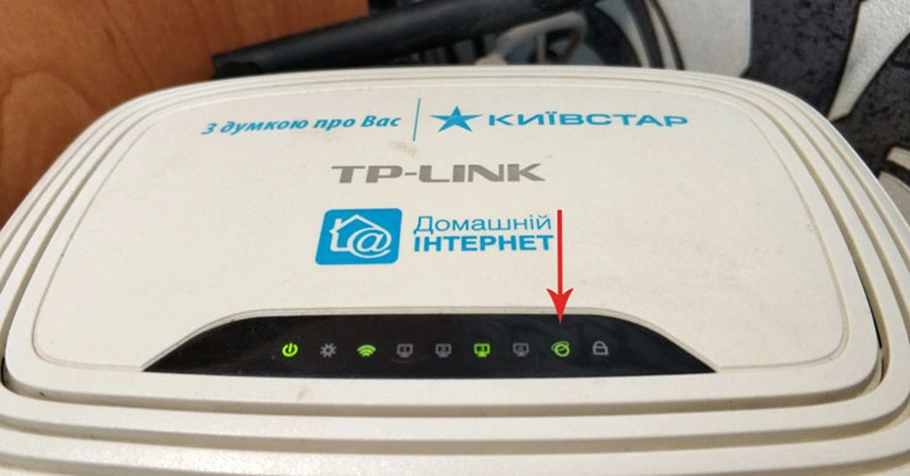
You can check the cable’s integrity using your Wi-Fi router. Plug it into the WAN port; if the cable is intact, the internet connection indicator on the router will light up.
If the indicator doesn’t light up, you may see a message on your PC or laptop saying “No internet connection” or “No internet access.”
The internet cable may be damaged either inside or outside your apartment. Inspect the cable along its length, especially if it runs under the baseboard, where it may be pinched. If you have pets, they might have chewed through the cable, so inspect it for damage as well.
Besides a personal check, you can also request a remote check of the cable’s integrity at your address through your provider’s support.
Method 3: Verify the correct connection of the internet cable.
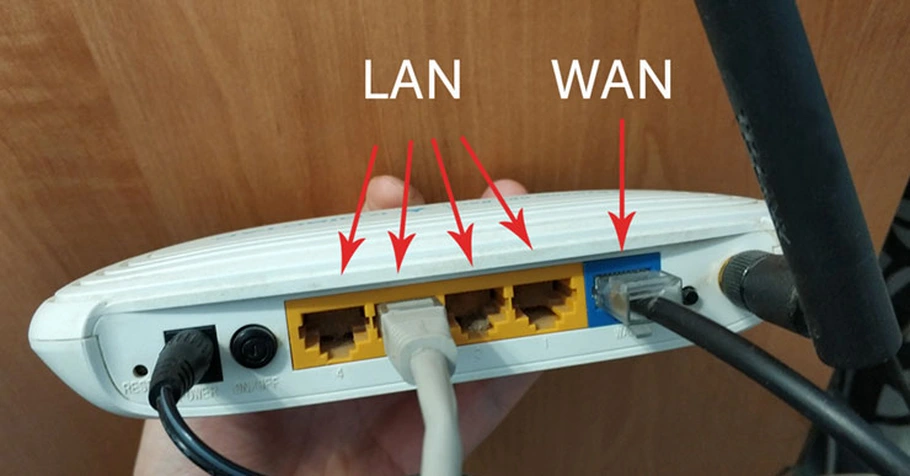
If you use a Wi-Fi router, the cable might be connected incorrectly. The WAN internet cable typically plugs into a blue port. Ensure it’s connected correctly or try plugging it directly into your device (PC, laptop).
You can also connect another device to the router via the LAN network cable to transmit the signal from the router to your device.
If the problem persists, try connecting the cable directly to your device, bypassing the router. In this case, you’ll need to know your provider’s connection settings to configure it manually.
If your provider uses dynamic IP, go to Windows 10’s “Network Connections” — “Change adapter settings“, right-click on “Network” and select “Properties“.
Then select IP version 4 and click “Properties“. In the window that opens, check “Obtain an IP address automatically” and “Obtain DNS server address automatically“. Click “OK“.If your provider gives you a static IP address, you will need to enter it manually in the settings. Check “Use the following IP address” and fill in the “IP address“, “Subnet mask“, and “Default gateway” fields. These details are provided in the service contract with your internet provider.
Method 4: Check the provider’s equipment.
In multi-story buildings, providers often use shared switches to connect the internet to individual apartments. If the switch is not working, you won’t have internet access. This problem can be temporary or permanent (e.g., during power outages). You cannot resolve this issue on your own; the only solution is to contact your provider’s support team and have them check their equipment.
Method 5: Check network connection settings.
Sometimes, network settings might be configured incorrectly. In Windows 10 or 11, go to “Network & Internet” and check the “Ethernet” section. Your network name should be listed, and the status should show “Connected.” If it says “Disconnected,” go to “Change adapter settings,” right-click on your network, and select “Enable.” If you see other unidentified networks, disable or delete them.
Keep in mind that you should only modify network settings if you know what you’re doing. Think logically—if your internet worked yesterday and doesn’t today, and you haven’t changed any settings, the problem likely lies elsewhere.