How to Use an External Monitor with a Closed Laptop

How can you use an external monitor with a closed laptop? Change the “When I close the lid” option in the control panel to “Do nothing” to keep the monitor on when the laptop is closed.
What You Need to Know
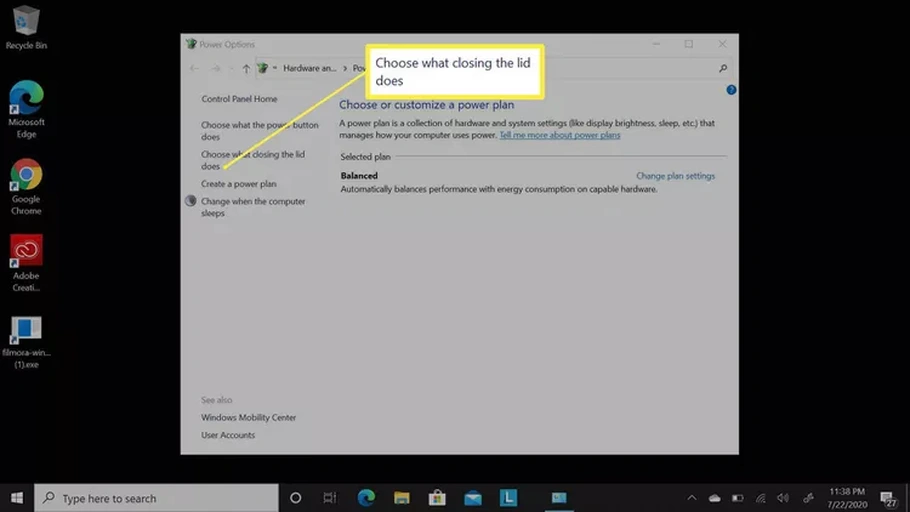
Open the “Control Panel” and select “Power Options” > “Choose what closing the lid does“.
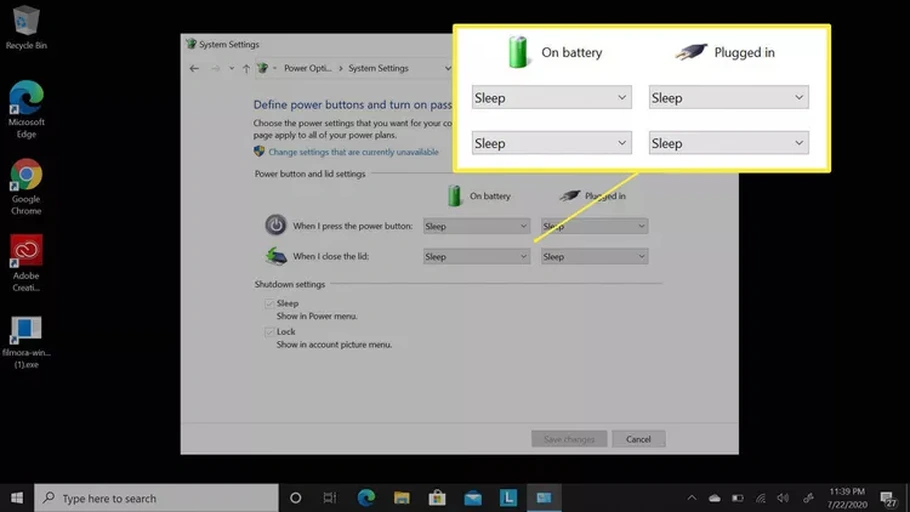
In the “On battery” and “Plugged in” sections next to “When I close the lid“, select “Do nothing“. From this moment on, the external monitor will stay on when the laptop is closed.
Important: Choosing “Do nothing” for the “On battery” option may cause your battery to drain quickly when not connected to a power source.
In this article, we’ll explain how to keep your Windows laptop on even when it’s closed.
How to Keep Your Windows Laptop On When It’s Closed
When you close your laptop lid, Windows typically puts the laptop into sleep mode, which automatically turns off the computer, even if an external display is connected. To prevent this, you need to stop the computer from entering a low-power mode.
- In Windows 11, open the “Control Panel” and go to “Hardware and Sound” > “Power Options“. Then, move on to step 3.
- In Windows 10, right-click the battery icon in the bottom right corner of the desktop.
Note: If you can’t find the battery icon, click the upward arrow (“Show hidden icons“) to reveal hidden icons.

Click on “Power Options“.

Click on “Choose what closing the lid does“.
Pay attention to the two categories next to “When I close the lid“: “On battery” and “Plugged in“. In each column, use the drop-down menu to select the desired action when closing the lid.
Depending on your needs, choose “Do nothing” for one or both columns.
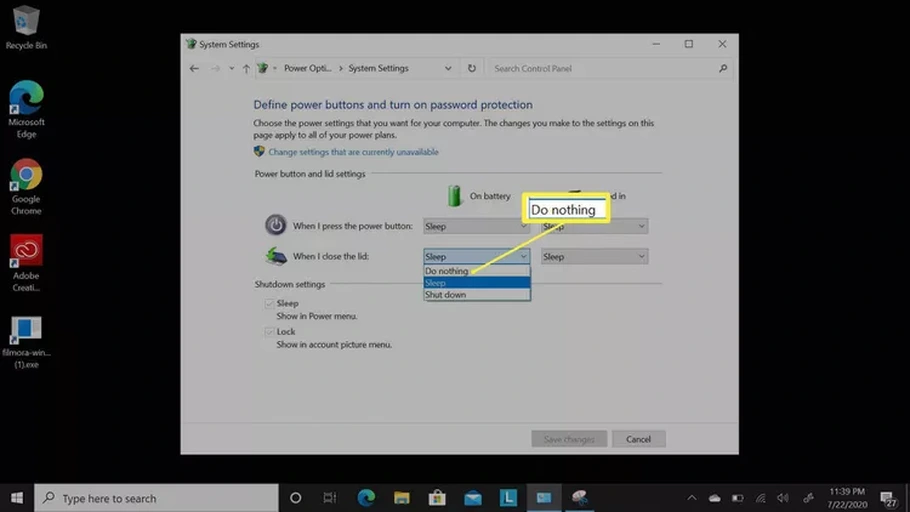
From now on, when you close the lid, the computer will continue to run and will not disconnect from the monitor.
Warnings About Keeping Your Laptop On with the Lid Closed
Choosing the “Do nothing” option for “On battery“, as described above, may lead to future issues. If you close the lid and put the laptop in a bag, it will continue to run and could overheat. Excessive heat can damage the device. Use the power button to put your laptop to sleep when you’re not using it.
Additionally, depending on the monitor you’re using, the laptop might also power the monitor, which could drain the battery much faster. For this reason, you may want to set different actions for the laptop when it’s running on battery power versus when it’s plugged in.
If you’re using an external monitor, you’re likely near a power source, so it might be a good idea to adjust the laptop’s actions after closing the lid when it’s plugged in.