How to Check Your Windows Product Key

This article explains in detail how to verify your Windows product key on your computer. This can be done through several methods: using Command Prompt or the free “ProduKey” software. Additionally, “ProduKey” allows you to retrieve the product key even from a non-working computer. If you upgraded to Windows 10 from a preview version, you won’t have a traditional product key but instead have a digital license. To access it, simply sign in to your Microsoft account on a new device.
Using Command Prompt

Open the Windows Start menu by clicking the Windows logo in the bottom-left corner of your screen.

In the Start menu search bar, type “Command Prompt”.
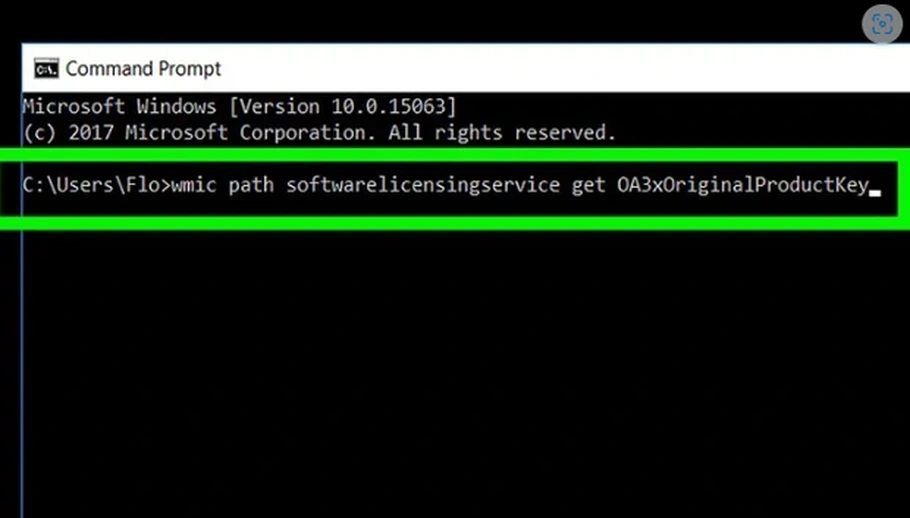
Click on the Command Prompt icon (a black window with white text) at the top of the Start menu.
Log in as an administrator.
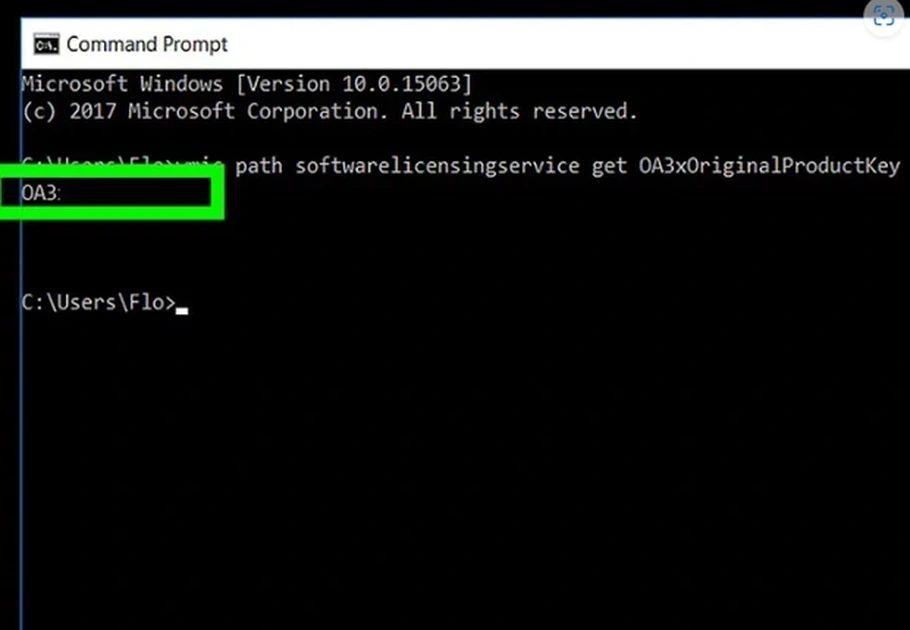
In the Command Prompt, enter the following command: wmic path softwarelicensingservice get OA3xOriginalProductKey, then press Enter.
A 25-character product key will appear on the screen. Take a screenshot or write it down for safekeeping.
Using ProduKey
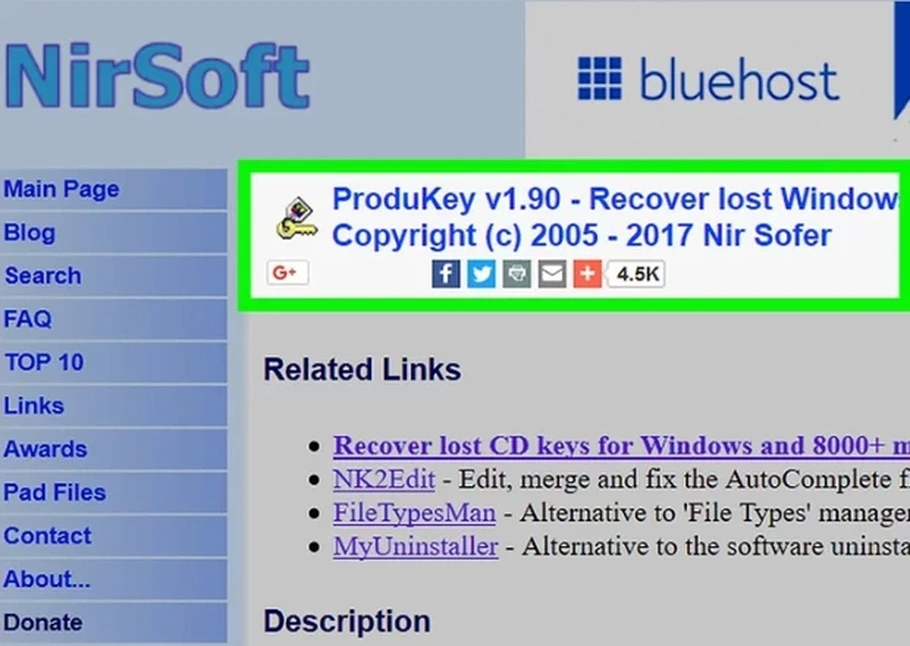
Visit the official ProduKey website.

Scroll down and click “Download ProduKey (In Zip file)” to download the archive containing the program.
Extract the archive by double-clicking the ZIP file and selecting the “Extract” option.

Launch ProduKey by double-clicking its icon (a key-shaped icon).
In the program window, you’ll see the 25-character product key next to your hard drive name.
Retrieving a Product Key from a Non-Working Computer
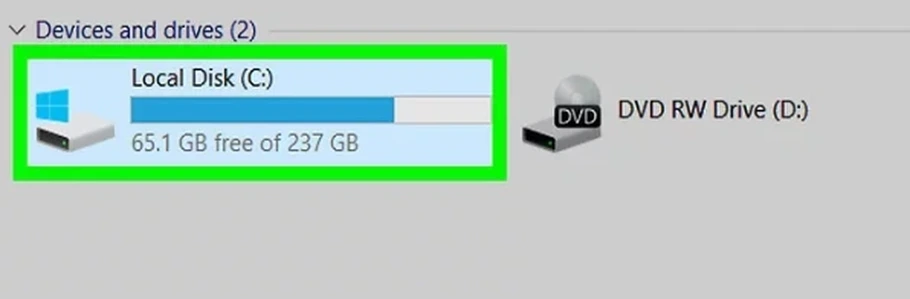
Connect the hard drive from the non-working computer to a working computer. Remove the drive and connect it using an adapter (SATA or IDE) to the working computer.
Open ProduKey. If it’s not already installed, download and install it.
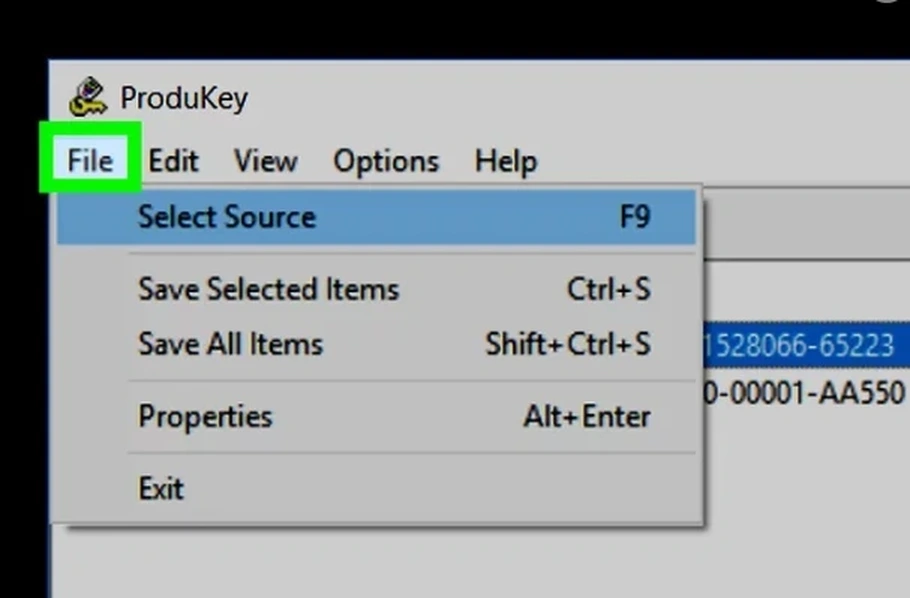
In the program’s top menu, click “File” → “Select Source”.

Choose the option “Load the product keys from external Windows directory” and click “Browse”.
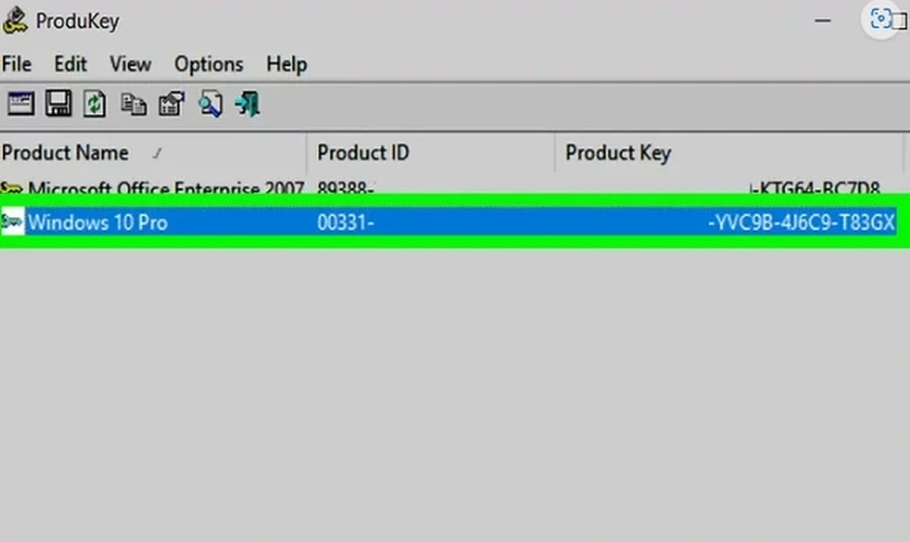
Locate the connected hard drive, select it, and click “OK”.
Additional Information
The Windows product key may be found on a label on the computer case or under the laptop battery.
If your antivirus flags ProduKey as unwanted software, this is because the program accesses the product key, but it is safe as long as it’s downloaded from the official website.
For those looking for a convenient way to activate Windows without using third-party programs, we recommend checking the detailed guide “Activating Windows 11 Forever for Free.”