How to Update Your iPhone: Useful Solutions
In this article, we will guide you through updating your iPhone to the latest iOS version. This guide will be extremely helpful for Apple smartphone users as it provides detailed, step-by-step instructions. Even a beginner with no experience using iOS devices can easily update their gadget.
Preparing for the Update
Before updating your iPhone, it’s important to prepare your device to avoid any unexpected issues or unpleasant consequences. Here are a few simple steps to help you get ready:
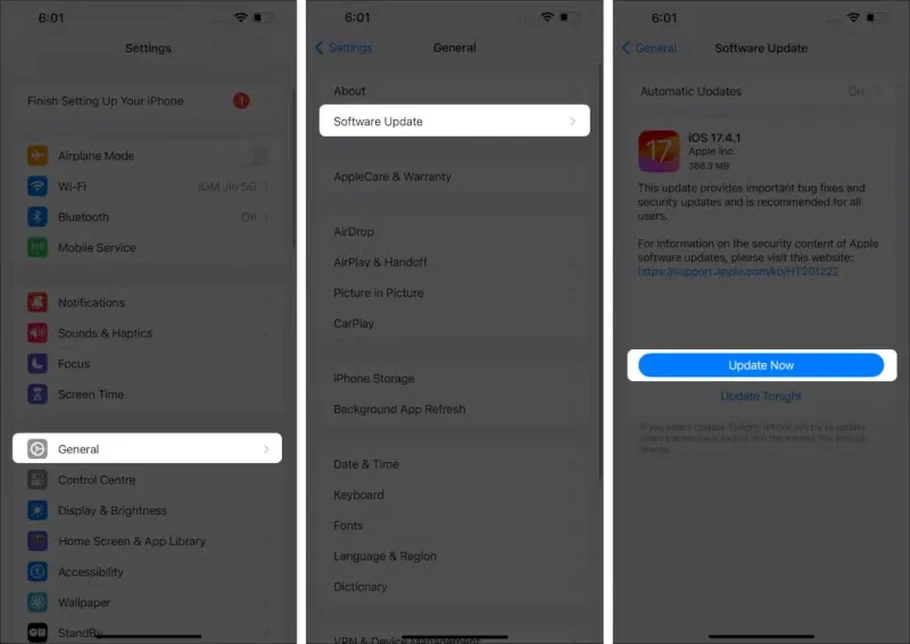
Check for Updates: First, open “Settings” > “General” > “Software Update” on your device. Here, you can see if a new version of iOS is available.
Prepare and Free Up Space: Updates can take up a significant amount of memory. Check your device for sufficient free space by deleting unnecessary apps or media files.
Connect to Wi-Fi: Downloading updates via mobile data can be slow and expensive. It’s better to connect to a stable Wi-Fi network.
Charging: Ensure your gadget has enough charge (at least 50%) or keep it connected to a charger during the update.
Backup Your Data: Before any update, create a backup of your data through iCloud or iTunes to avoid losing important information.
Methods of Updating
There are several ways to update your iPhone: through the device’s settings or using iTunes on a computer. Let’s take a closer look at both options to understand the nuances of each. Here are detailed instructions for updating your iPhone using official and secure methods.
Updating via Settings
Open “Settings”: Go to “Settings” > “General” > “Software Update.”
Download the Update: If an update is available, tap “Download and Install.” After downloading, a separate window with the terms of service will appear. You must accept them.
Install the Update: Once the update is downloaded, your iPhone will prompt you to install it. Choose “Install Now.” The device will restart and install the new iOS version.
Updating via iTunes
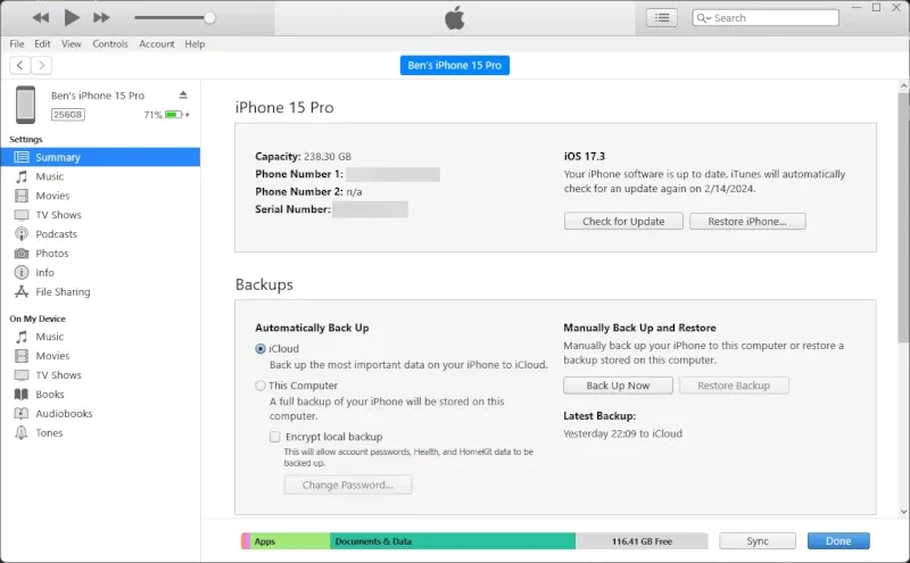
Connect Your iPhone to a Computer or Laptop: Use a USB cable to connect your device to a computer with iTunes installed.
Launch iTunes: Open iTunes if it doesn’t start automatically.
Select Your Device: In iTunes, find and select your iPhone.
Check for Updates: Go to the “Summary” section and click “Check for Update.”
Download and Install the Update: If an update is available, iTunes will offer to download and install it. Carefully follow the on-screen instructions.
Troubleshooting During the Update
Sometimes, issues can arise during the update process. Here are a few tips on how to solve the most common problems:
- Insufficient Space: If your iPhone doesn’t have enough space, delete unnecessary apps or media files.
- Slow Connection: Connect to a stable Wi-Fi network to avoid interruptions during the download.
- Update Error: If an error occurs during the update, try restarting your device and attempting the update again. If the problem persists, try updating your iPhone through iTunes.
- Device Not Turning On: If your iPhone doesn’t turn on after the update, try performing a hard reset by holding the power button and the volume down button (for models without a Home button) or the power button and the Home button (for older models) for several seconds until the Apple logo appears.
Most of the time, these issues are minor and easily resolved, allowing your device to update without any major problems.
Safety and Backup Tips
For a successful iPhone update, it’s important to follow a few simple rules:
- Backup Your Data: Always create a backup of your data before updating. This can be done through iCloud or iTunes.
- Update via Wi-Fi: Use a stable Wi-Fi connection to download updates to avoid interruptions.
- Check Compatibility: Ensure that your iPhone model supports the new iOS version.
- Data Security: Only download updates from official sources. Use only official updates from Apple.
- Charging: During the update, ensure the device has enough charge or is connected to a charger.
Updating your iPhone is an important process that requires careful preparation and adherence to the correct sequence of steps. By following these tips, you can easily update your iPhone and avoid potential issues. Don’t forget to back up your data and use only official updates from Apple. Avoid installing unverified software and modifications, as they can damage your device.