Can’t access the site, can’t find DNS address
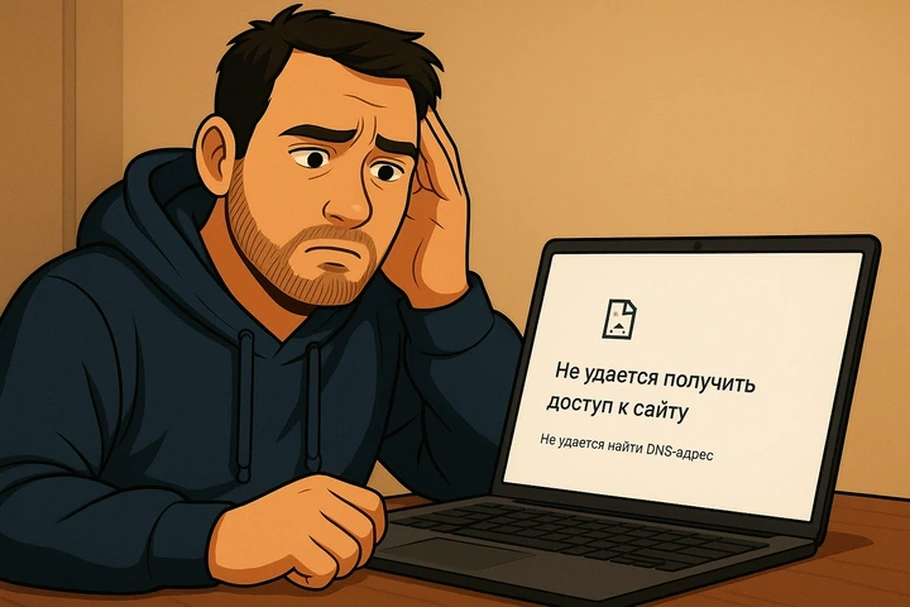
A DNS error with the message “Cannot find the DNS address of the site” can disrupt your online experience. Is a website not loading, and you’re unsure what to do? Don’t rush to tweak your router or browser settings! In 2026, we’ll break down the most common causes of this issue and provide simple solutions to get you back to your favorite websites quickly.
Why Does a DNS Error Occur?
A DNS error happens when your device can’t locate a website’s IP address due to issues with the DNS server. This can be caused by:
- Website blocking in your country.
- A non-responsive website server.
- Errors in the website address.
- Provider-imposed restrictions.
- Incorrect DNS settings on your device.
Let’s explore each scenario in detail to help you resolve the DNS error efficiently.
Website Blocked in Your Country
Some websites may be inaccessible due to regional restrictions. For instance, in Ukraine, Russian websites in the .ru domain are blocked. If you encounter a DNS error, try these steps:
- Enable a VPN and select a different country (e.g., the Netherlands or the USA).
- Check if the website loads with the VPN active.
If the site works, the issue is due to country-specific blocking. We recommend trusted VPN services like NordVPN or ExpressVPN. For more on reliable internet connections, read about Westelecom’s fiber-optic internet in 2026.
Website Server Not Responding
If a DNS error persists even with a VPN, the website’s server might be down. Temporary technical issues can cause this. Here’s what to do:
- Wait a few minutes or hours and try again.
- Check the site in the Wayback Machine if it’s been unavailable for a long time.
If the site remains offline for days, the owner may have stopped maintaining it. For more insights on server issues, see our article on ChatGPT server crashes.
Incorrect Website Address
A DNS error can also stem from a mistyped URL. Verify the following:
- Is the site name correct (e.g., “googlr.com” instead of “google.com”)?
- Is the domain zone accurate (.com, .org, .ua)?
- Has the site moved to a new domain without a redirect?
If you’re unsure about the address, search for the site on Google or another search engine.
Provider Blocking
Internet providers may block specific sites due to legal restrictions. In Ukraine, for example, services like Yandex, VK, and Mail.ru are banned. If you suspect provider blocking:
- Contact your provider’s technical support.
- Ask if the site has been mistakenly filtered.
For help with home internet issues, check out our guide on what to do when your home internet fails.
Issues with DNS Settings on Your Device
Incorrect DNS settings on your computer or router can trigger a DNS error. Here’s how to fix it on Windows 10/11:
- Go to Settings → Network & Internet → Ethernet → Change adapter options.
- Right-click your network, select Properties → IP Version 4 → Properties.
- Choose “Obtain DNS server address automatically” and click OK.
If that doesn’t work, try using Google’s public DNS servers:
- Preferred DNS server: 8.8.8.8
- Alternate DNS server: 8.8.4.4
After applying changes, restart your router and computer. If the issue persists, test the site on another device. Learn more about network setup in our article on why Kyivstar home internet might not work.
Extra Tips for a Stable Internet Connection
To prevent DNS errors in the future:
- Regularly restart your router to refresh the connection.
- Keep your browser updated to the latest version.
- Use antivirus software to check for malware that might affect DNS settings.
If you’re considering switching providers or disconnecting services, see our guide on how to disconnect Ukrtelecom internet or landline.
Conclusion
A DNS error is a common issue that you can often resolve on your own. In 2026, check for site blocking, verify the address, adjust DNS settings, or contact your provider to fix the problem. Our tips will help you regain access to your favorite websites in no time.
Have questions or your own fixes for a DNS error? Share them in the comments below!